

Professional profile photo of Akaeid Hasan – WordPress Developer, Frontend Specialist, and Web Designer

Akaeid Hasan

Frontend Developer

I’m Akaeid Hasan, a Frontend Developer focused on WordPress. I build clean, fast, and responsive websites that help businesses grow. I also have working knowledge of HTML, CSS, and JavaScript for better flexibility and performance.

Learn how to set up WordPress step by step

Blog post thumbnail – step by step WordPress setup guide by Akaeid Hasan

To develop a professional website with WordPress, you have to go through a few steps. Here in this guide, we will walk you through the step-by-step process to set up a WordPress website.

Step 1: Buy Domain & Hosting
To build a website, you have to buy a domain name (e.g., yourwebsite.com) and a hosting plan initially. Some of the popular domain and hosting providers are:
Namecheap
GoDaddy
Bluehost
Hostinger

After buying your hosting and domain, you must configure the nameservers to link the domain with your hosting.

Step 2: Install WordPress

You can install WordPress through your hosting panel cPanel or DirectAdmin using the “Softaculous” installer. To install manually:
Download the most recent WordPress files from WordPress.org.
Upload them to the public_html directory in your hosting File Manager.
Create a database and configure it in the wp-config.php file

Step 3: Install a Theme

To make your website look better in terms of design and UI, you have to install a good-looking theme.
Visit WordPress Dashboard > Appearance > Themes > Add New to install a free theme.
For premium themes, you can buy from ThemeForest or Envato.

Step 4: Install Necessary Plugins

To enhance the functionality of your WordPress website, install these must-have plugins:
Elementor (Page Builder)
Rank Math / Yoast SEO
WP Rocket (Speed Optimization)
Contact Form 7
UpdraftPlus (Backup)

Step 5: Customize Your Website

Once you’ve installed a theme, you should customize your website:
Add Logo & Favicon
Set Up Menus
Design the Home Page
Customize Header & Footer
Optimize SEO

Step 6: Set Up Security & Backup

For securing your website, install an SSL certificate and configure daily backups. You can further protect your website with the Wordfence Security plugin.

Step 7: Publish Your Website

After setting everything up, do a final check to make sure your website is mobile-friendly and speed optimized. After confirming, proceed to publish your website.

Conclusion

You can comfortably install a WordPress website with these steps. If you have any problems, don’t hesitate to ask!
 

Leave a Reply

Your email address will not be published. Required fields are marked *

Related Post

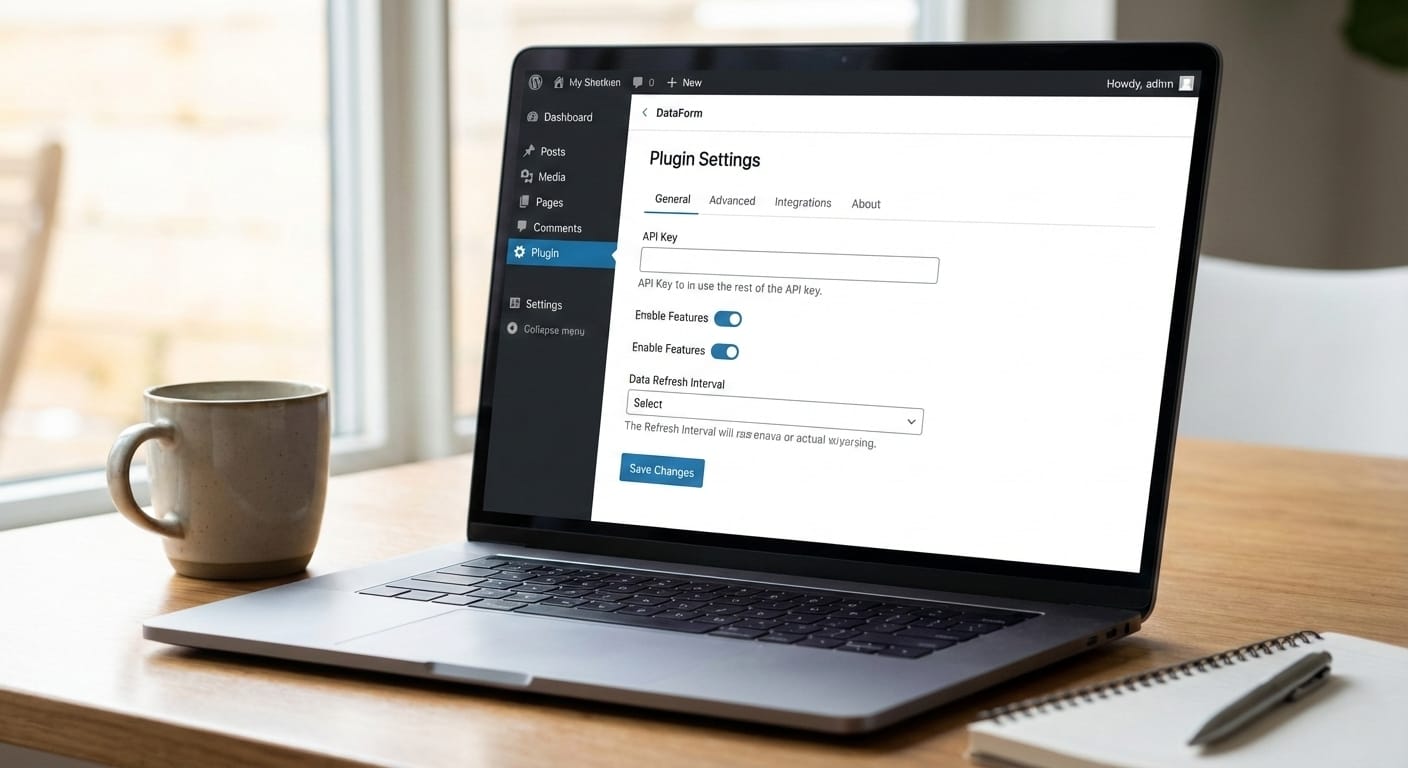
A professional workspace image showing a laptop on a wooden desk displaying the WordPress admin dashboard plugin settings page. The screen shows a plugin configuration panel with API key input field, enable features toggle buttons, data refresh interval dropdown, and save changes button. This interface represents WordPress plugin setup, website backend configuration, and admin panel customization used by web developers like Akaeid Hasan for managing website functionality, integrations, and performance settings. A coffee mug and notebook beside the laptop indicate a modern web development working environment.

WordPress is evolving rapidly—not only on the front end but also inside the admin panel. With the new admin redesign, …

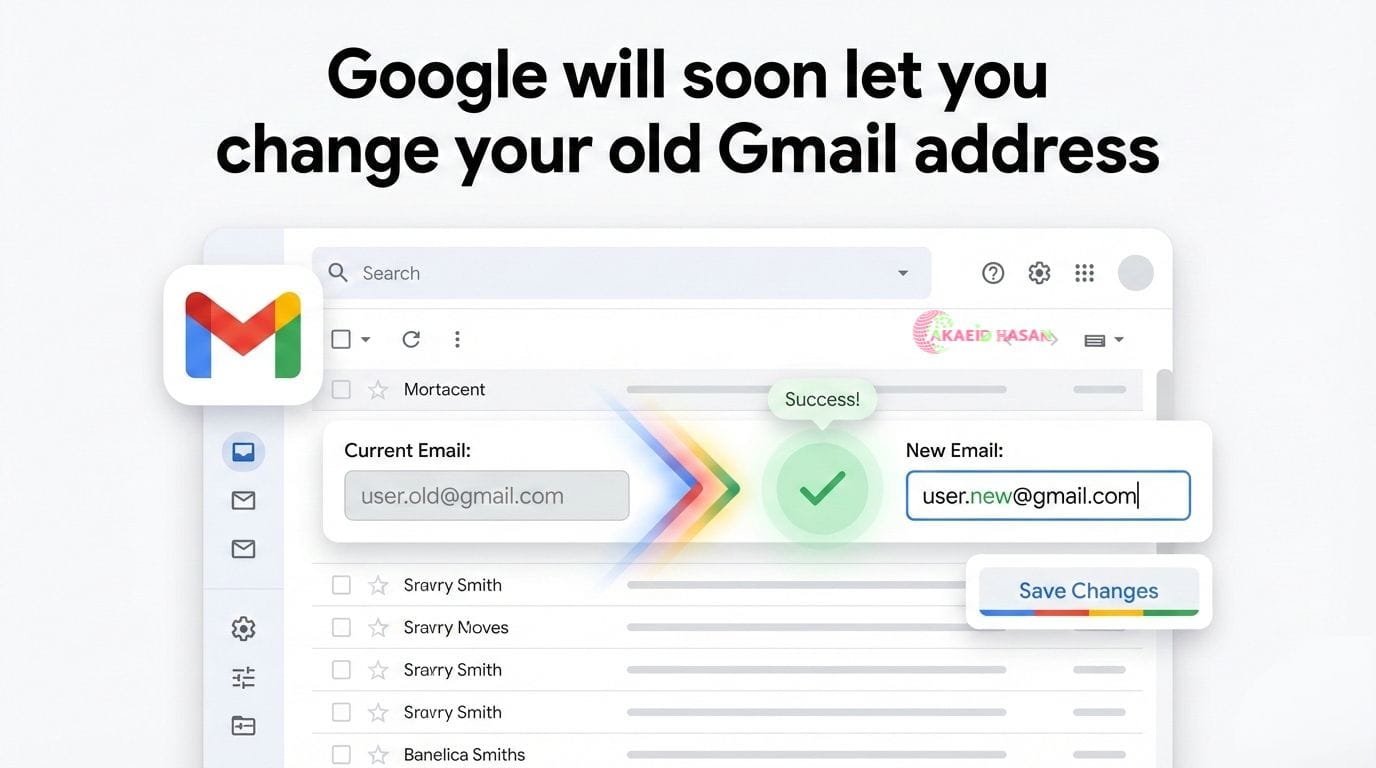
A clean blog post cover image illustrating Google allowing users to change their old Gmail address, featuring the Gmail interface with a transition from an old email address to a new email address, a success confirmation checkmark, and a Save Changes button, representing upcoming Gmail account update features and email identity management, designed and presented by Akaeid Hasan.

Google Will Soon Let You Change Your Old Gmail Address — Full Details Google is finally preparing to roll out …

Testimonial

What Client Says About Akaeid Hasan

Bouncing Tags with Marquee Animation
WordPress
Elementor
WooCommerce
Crocoblock
Shopify
HTML
CSS
JavaScript
Figma
WordPress Website Development
WordPress Website Design
Figma to WordPress
PSD to WordPress
Elementor Design
E-commerce Store Setup
Shopify to WordPress Migration
WordPress Website Development
WordPress Website Design
Figma to WordPress
PSD to WordPress
Elementor Design
E-commerce Store Setup
Shopify to WordPress Migration
Landing Page Design
Restaurant Website Design
Personal Portfolio Website
Business / Corporate Website
Educational / LMS Website
Service-Based Website
Real Estate Website
Landing Page Design
Restaurant Website Design
Personal Portfolio Website
Business / Corporate Website
Educational / LMS Website
Service-Based Website
Real Estate Website