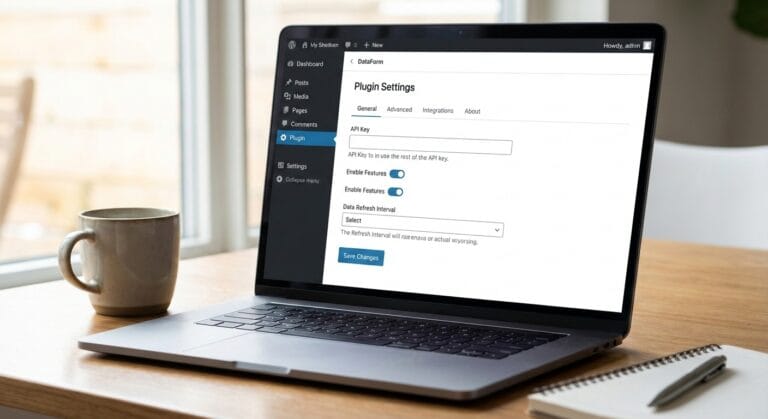
 or call +8801580726459 for WordPress development and support. This image showcases Akaeid Hasan’s custom WordPress plugin development work and the UploadShield solution for better WordPress website and Media Library management.](https://akaeidhasan.com/wp-content/uploads/2026/10/Akaeid-Hasan-UploadShield-WordPress-Plugin-–-Image-Upload-Size-Control.png)
WordPress Image Upload Size Limit Plugin: UploadShield
UploadShield is a WordPress image upload size limit plugin that blocks oversized images before they enter the Media Library. It lets you set separate limits for administrators and other WordPress users in KB or MB. Both groups start with a 300 KB limit, and either restriction can be disabled independently.
A website can look carefully designed on launch day and become harder to manage as new content arrives. An editor uploads a large photograph. A client adds a full-resolution banner. A store manager imports product images prepared for print rather than the web.
UploadShield gives administrators a clear rule for incoming images. Instead of checking each file manually, you set the maximum size in WordPress and let the plugin reject images that exceed it.
I’m Akaeid Hasan, the developer and maintainer of UploadShield. This guide explains what the plugin does, how to configure it, and where it fits into a practical WordPress media workflow.
Explore UploadShield on GitHub to access the project and its documentation.
Why Set an Image Upload Limit in WordPress?
A hosting account may accept a large file without that file being appropriate for your website. A server allowance of 64 MB, for example, does not mean every blog illustration or product photograph should approach that size.
An image upload policy helps a team agree on what can enter the Media Library. That is useful when several people publish content, clients update their own websites, or storage needs to be managed carefully.
File size and display dimensions are different. A 300 KB restriction controls the amount of data in an image file; it does not require a particular width or height. A suitable limit depends on the image’s purpose and the quality you need to preserve.
During WordPress website development, it is worth planning how the site will be maintained after handover. Upload rules are one part of that process, alongside image preparation and clear publishing instructions.
What UploadShield Does
UploadShield focuses on checking the file size of incoming images through the standard WordPress upload pipeline.
| Feature | What it means for your website |
|---|---|
| Administrator image limit | Set a maximum image file size for administrators. |
| Other-user image limit | Apply a separate limit to other WordPress users. |
| KB and MB units | Choose the unit that fits your image policy. |
| Independent controls | Enable or disable either restriction separately. |
| Clear upload errors | Show the allowed size and the uploaded image size. |
| Image-specific checks | Leave non-image file uploads untouched. |
| Responsive admin settings | Manage the limits from the WordPress dashboard. |
| No frontend scripts or branding | Add no public-facing badges or promotional content. |
The plugin does not grant upload permissions to users who do not already have them. Its other-user setting provides a shared limit, rather than a separately configurable rule for every WordPress role.
Default Settings
After activation, the default maximum image size is 300 KB for administrators and 300 KB for other users.
These values are adjustable under WordPress Dashboard → Settings → UploadShield. They are starting settings, not a universal image-quality standard.
How UploadShield Checks an Image
UploadShield uses the WordPress wp_handle_upload_prefilter filter. The official WordPress documentation explains that this hook provides an opportunity to examine an uploaded file before it is moved to its final location. Developer.WordPress.org
For a supported image upload, the plugin checks the current user’s applicable limit. If the restriction is enabled and the image exceeds it, UploadShield returns an upload error and stops the image from being accepted.
For example:
| Setting or action | Value |
|---|---|
| Administrator maximum image size | 300 KB |
| Image submitted by an administrator | 750 KB |
| Result | Upload blocked |
| Feedback | Error explains the allowed size and uploaded image size |
The uploader can prepare a smaller version and try again. UploadShield does not automatically compress the rejected image.
The check happens within WordPress upload handling. It should not be understood as preventing the initial transfer of file data from a browser to the server.
How to Install and Configure UploadShield
1. Download the Plugin ZIP
Visit the UploadShield releases page and download the plugin release ZIP provided for installation.
2. Upload and Activate the Plugin
In the WordPress dashboard:
- Go to Plugins → Add New Plugin → Upload Plugin.
- Select the downloaded UploadShield ZIP.
- Click Install Now.
- Activate UploadShield.
3. Open the Settings
Go to Settings → UploadShield. Set the administrator limit, the other-user limit, and the KB or MB unit for each setting.
4. Choose Limits for Your Workflow
The following are configuration examples, not mandatory recommendations:
| Example workflow | Administrator limit | Other-user limit |
|---|---|---|
| Smaller images for routine publishing | 500 KB | 300 KB |
| More flexibility for administrators | 1 MB | 300 KB |
| Larger image allowance for both groups | 2 MB | 1 MB |
Choose a limit that allows suitable images to retain their clarity. Product details, screenshots, and large visual layouts may require different preparation from small blog illustrations.
Either UploadShield restriction can be disabled independently. Other WordPress checks and server restrictions still apply when a plugin limit is disabled.
5. Save and Check Your Upload Workflow
Save your settings, then try an image below the limit and another above it. If you use different settings for administrators and other users, check both groups with accounts that have upload permission.
For custom forms or third-party upload interfaces, test that specific workflow too. This confirms whether it passes through the WordPress upload handling used by UploadShield.
Where UploadShield Is Useful
Client Websites
Clients should not need to remember a file-size rule every time they update a page. An enforced limit gives them immediate feedback when an image needs preparation before publishing.
This fits naturally into a website handover: explain the preferred image dimensions, show how to export a suitable file, and configure the upload allowance.
Blogs and Content Teams
On a multi-author site, the administrator and other-user limits can support a consistent publishing process. Editors and authors with upload access follow the shared other-user rule, while administrators can have a different allowance.
WooCommerce Stores
Product photos, gallery images, and promotional graphics can accumulate across a store. UploadShield can apply to those image uploads when they use the standard WordPress upload pipeline.
Custom importers or alternative upload implementations may behave differently. The plugin’s compatibility depends on the upload path, not simply on WooCommerce being installed.
Elementor Websites
Elementor layouts often include hero images, backgrounds, portfolios, and landing-page graphics. UploadShield can check incoming images when their upload workflow uses the relevant WordPress handling.
It does not modify Elementor, add Elementor widgets, or change the appearance of existing pages.
Image Upload Limits vs. PHP Upload Limits
UploadShield adds an image-specific rule inside WordPress. It does not change the hosting server’s upload configuration.
For example, a server may allow a 64 MB upload while UploadShield limits an administrator’s image upload to 500 KB. An image must satisfy both the server restrictions and the applicable plugin rule.
The PHP documentation on upload configuration describes upload_max_filesize. Related server settings, including post_max_size, can also affect whether an upload request is accepted. Manual
If the server blocks a file before WordPress can process it, increasing the UploadShield limit will not solve that restriction.
What UploadShield Does Not Do
UploadShield is an upload-size control tool. It does not:
- Compress or resize images.
- Convert JPEG or PNG files to WebP.
- Change image quality.
- Optimize images already in the Media Library.
- Set a general size restriction for non-image uploads.
- Replace server upload settings.
It also does not replace malware scanning or other website security controls. Rejecting a file because of its size is different from checking whether a file is safe.
How It Fits Into Image Optimization and SEO
UploadShield can support a more controlled publishing workflow, but installing it does not automatically improve page speed or search rankings. Its job is to enforce an upload-size rule.
Google’s image SEO best practices cover a wider set of considerations, including image quality, responsive delivery, descriptive filenames, and useful alt text. developers.google.com
A practical workflow is to prepare the image for its intended use, export it at suitable dimensions and quality, upload it within your configured limit, and check how it appears on the page.
Meaningful filenames and alt text still need editorial attention. UploadShield does not generate them. My WordPress on-page SEO services address broader page elements such as content structure, metadata, internal links, and image descriptions.
For an example of how design and content organization work together, see my SEO consultant website development case study. It covers responsive layouts, service presentation, and a structure designed to support future content. That is a separate website project, not an UploadShield performance test.
Privacy, Support Notices, and Frontend Behavior
UploadShield includes no analytics, tracking, or automatic data transmission to external services. It does not automatically send website data to Akaeid Hasan.
The plugin includes a small author/support banner only inside the UploadShield settings screen. It also includes a dismissible admin support reminder on a fixed 15-day cycle.
External support links open only when an administrator chooses to click them. No frontend scripts, badges, or developer branding are added to the public-facing website.
Requirements and Project Access
The compatibility requirements are:
| Component | Requirement |
|---|---|
| WordPress | 6.0+ |
| PHP | 7.4+ |
| Upload handling | Standard WordPress media upload pipeline |
| License | GPL-2.0-or-later |
The UploadShield GitHub repository is the project reference for its source and documentation. Use the issue tracker for ordinary bug reports and feature suggestions. For sensitive security reports, follow the project’s security reporting instructions.
Frequently Asked Questions
How do I limit image upload size in WordPress?
Install UploadShield, open Settings → UploadShield, and configure the administrator and other-user limits in KB or MB. Save the settings. The plugin rejects oversized images that pass through its supported WordPress upload workflow.
What is the default UploadShield image limit?
The default is 300 KB for administrators and 300 KB for other WordPress users. You can change either value from the settings screen.
Can administrators upload larger images than editors?
Yes. Set a larger administrator limit and a smaller other-user limit. Editors with upload permission use the shared other-user setting.
Can I disable the image upload limit?
Yes. Either plugin restriction can be disabled independently. Hosting limits and other WordPress upload checks continue to apply.
Does UploadShield resize or compress an oversized image?
No. It blocks the oversized upload and explains the allowed size and submitted image size. Prepare a smaller image using a separate tool before trying again.
Will UploadShield change existing Media Library images?
No. Its purpose is to check incoming image uploads. It does not resize, compress, or optimize existing media.
Does it restrict PDF, document, or video uploads?
UploadShield leaves non-image uploads untouched. Those files remain subject to WordPress permissions, allowed file types, server limits, and any other active restrictions.
Does UploadShield work with WooCommerce and Elementor?
It can apply to image uploads that use the relevant standard WordPress upload handling. Custom importers, forms, or upload systems need to be checked individually.
Does UploadShield increase the maximum PHP upload size?
No. It adds an image-size restriction within WordPress and cannot increase or bypass the server’s upload limits.
Does UploadShield collect website data?
No. It includes no analytics, tracking, or automatic external data transmission. Administrators choose whether to open the external support links.
Who developed UploadShield?
UploadShield was created and is maintained by Akaeid Hasan, a WordPress Developer based in Dhaka, Bangladesh, working with WordPress, Elementor, and WooCommerce.
Set a Clear Rule for Your Next Image Upload
If oversized images are entering your website because there is no enforced upload policy, UploadShield provides a focused way to introduce one. Choose the limits, save the settings, and give your content team clear guidance on preparing images.
Get UploadShield from GitHub to review the project and access its release downloads.
For help configuring a client website, reviewing its media workflow, or planning a WordPress project, contact Akaeid Hasan. You can also explore my website development portfolio before getting in touch.
About the Author
Akaeid Hasan is a WordPress Developer based in Dhaka, Bangladesh, and the creator of UploadShield. His work includes WordPress website development, Elementor customization, WooCommerce stores, responsive design, and website performance improvements.
Connect with Akaeid on Facebook, Instagram, X, or GitHub. For project inquiries, email akaeidhasan.bd@gmail.com or message him on WhatsApp.