
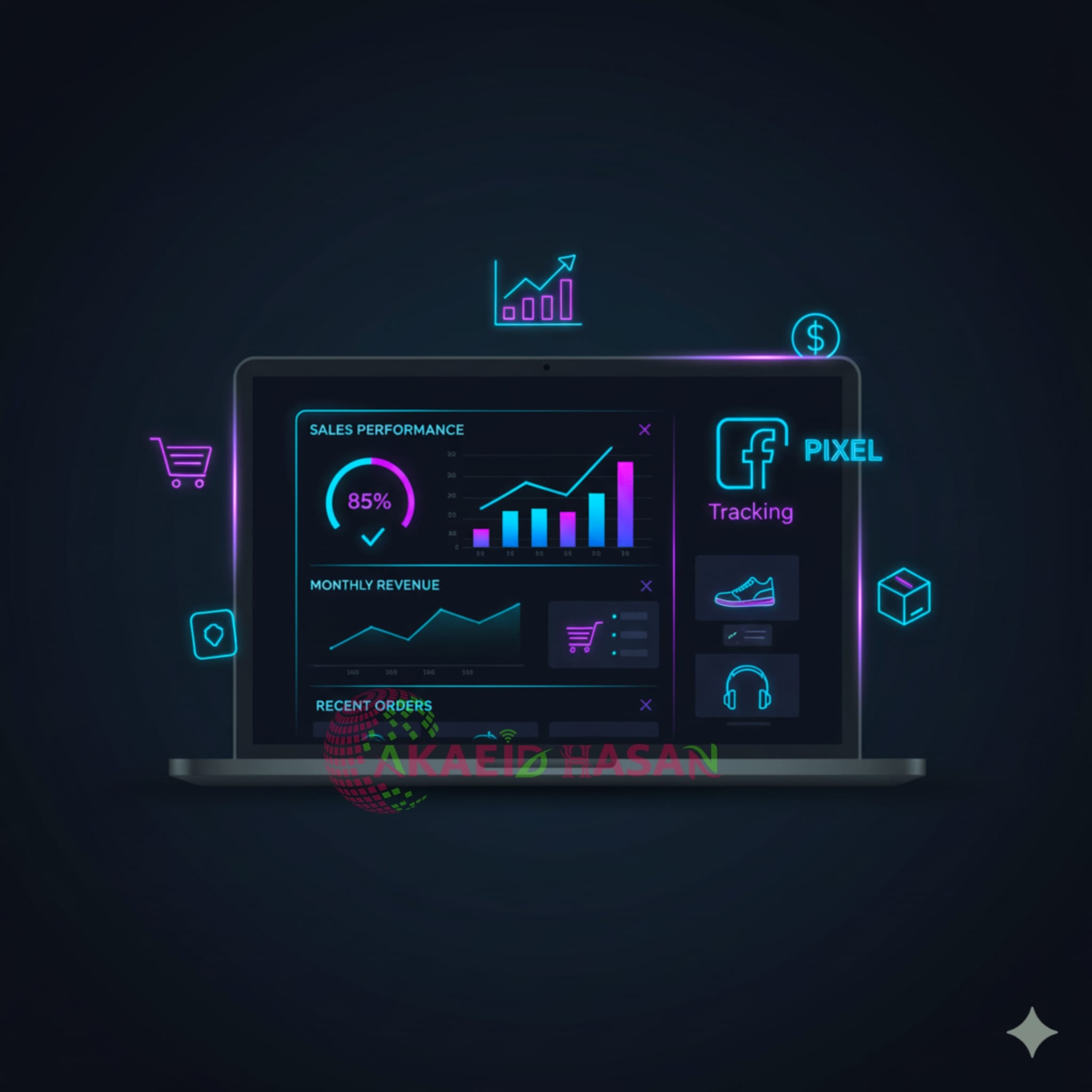
Facebook Pixel: What It Is, Why It’s Important for E-Commerce, and How to Set It Up in WordPress
If you run an online business, you probably spend money on ads. But here’s the big question: are your ads really working? That’s exactly what **Facebook Pixel** helps you figure out. It’s a powerful tool that tracks your visitors’ actions and shows you how your ads perform, so you can make smarter marketing decisions.
—
What is Facebook Pixel?
Facebook Pixel is a small piece of tracking code that you add to your website. Once installed, it monitors your visitors’ behavior—like viewing products, adding items to cart, or completing a purchase.
This data is then sent back to Facebook, helping you:
* Measure ad performance accurately
* Target the right audience
* Retarget visitors who didn’t purchase
* Build “lookalike audiences” similar to your best customers
—
Why Do E-Commerce Websites Need Facebook Pixel?
For e-commerce websites, **Facebook Pixel is a game-changer**. Here’s why:
1. **Track Conversions** – Know how many sales are coming directly from your ads.
2. **Retarget Customers** – Show ads to people who left without buying.
3. **Optimize Ads** – Facebook automatically learns which audience converts best.
4. Save Money** – No more wasting budget on people who aren’t interested.
Simply put, Pixel turns random ads into smart, data-driven campaigns that actually drive revenue.
—
How to Set Up Facebook Pixel on WordPress
Good news—adding Pixel to your WordPress site isn’t rocket science. Follow these steps:
1. Create a Pixel in Meta Events Manager
* Go to [Meta Business Suite]
* Click “Events Manager” → “Connect Data Sources” → “Web”
* Select “Facebook Pixel” and give it a name.
2. Add the Pixel to Your WordPress Website
* Copy the Pixel code.
* Paste it into your site’s `<head>` section (via theme settings or header plugin).
* Alternatively, use a plugin like “PixelYourSite” to make it even easier.
3. Verify & Test
* Install the **Meta Pixel Helper** Chrome extension.
* Visit your site to see if the Pixel is firing correctly.
—
Final Thoughts
Facebook Pixel is not just a tool—it’s your personal marketing assistant. It tells you what’s working, what’s not, and how to improve.
If you run a WordPress e-commerce store and haven’t set it up yet, now is the time. Your future sales depend on it.




 or call +8801580726459 for WordPress development and support. This image showcases Akaeid Hasan’s custom WordPress plugin development work and the UploadShield solution for better WordPress website and Media Library management.](https://akaeidhasan.com/wp-content/uploads/2026/10/Akaeid-Hasan-UploadShield-WordPress-Plugin-–-Image-Upload-Size-Control-768x432.png)